Back to websequencediagrams.com
Simple signals
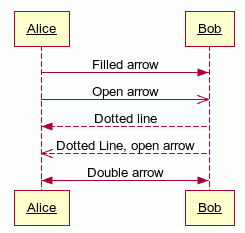
Draw a signal from one participant to another like this:
# This is a comment.
Alice->Bob: Filled arrow
Alice->>Bob: Open arrow
Bob-->Alice: Dotted line
Bob-->>Alice: Dotted Line, open arrow
Bob<->Alice: Double arrow
The participants are automatically created when they are used. Use the "-->" syntax to draw a dotted line.
To include a colon in a participant name, enclose it in quotes.
":Alice"->":Bob": Hello
The next section describes how to save typing by declaring participant names.
Changing the order of participants
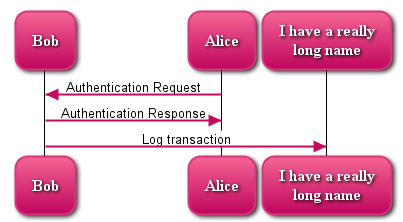
If you want to participants to be shown in a different order than they are
used, declare them first using the participant
keyword. You can also rename them this way to save typing.
participant Bob
participant Alice
participant "I have a really\nlong name" as L

Alice->Bob: Authentication Request
Bob->Alice: Authentication Response
Bob->L: Log transaction
Signal to Self
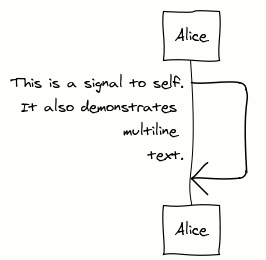
A participant can send a signal to itself. This will result in an arrow that turns back on itself.
You may break the text into multiple lines by using "\n".
Alice->Alice: This is a signal to self.\nIt also demonstrates \nmultiline \ntext.
Grouping signals together
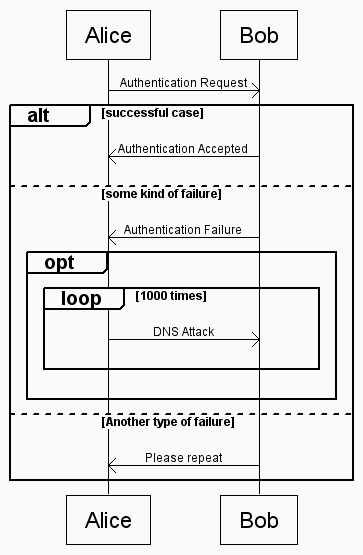
You can group signals together using the alt/else,
opt, loop, and par keywords. All
of them can take a text description that will be displayed in the group header.
Use the end keyword to signal the end of a group. The groups may
be nested to any depth.
Alice->Bob: Authentication Request
alt successful case
Bob->Alice: Authentication Accepted
else some kind of failure
Bob->Alice: Authentication Failure
opt
    loop 1000 times
        Alice->Bob: DNS Attack
    end
end
else Another type of failure
Bob->Alice: Please repeat
end
The else part is optional and can be repeated more than once for each condition.
Notes in the diagram
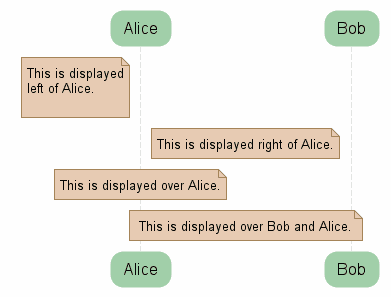
You can add notes to your diagram. Notes can be placed to the left of a participant or to the right of a participant. In addition, you can centre a note over one or more participants.
If a note contains more than one line, it will be not be word-wrapped. Instead, it will be formatted exactly as written.
participant Alice
participant Bob

note left of Alice
This is displayed
left of Alice.
end note
note right of Alice: This is displayed right of Alice.
note over Alice: This is displayed over Alice.
note over Alice, Bob: This is displayed over Bob and Alice.
Lifeline Activation and Destruction
Use the + and - with signals to denote
object activation. While activated, the participant's lifeline will be
highlighted. + will activate the receiver, and
- will deactivate the sender.
Use * with signals to create a participant. A->*B: hello.
You can use the destroy keyword to destroy a participant. The
participant's lifeline will end at the previous signal.
User->+A: DoWork
A->*+B: <<createRequest>>
B->*+C: DoWork
C-->B: WorkDone
destroy C
B-->-A: RequestCreated
A->User: Done
Alternate Syntax
activate
and deactivate keywords. The commands apply to the
previous signal.
Alice->Bob: Do some work!
activate Bob

Bob->Bob: Work routine
activate Bob
deactivate Bob

Bob->Alice: All done!
deactivate Bob
Only arrows can cause activations
A->+B: Activate please
B->-B: I'm deactivating now\n by myself
One arrow can activate/deactivate many participants at a time
A->B:
activate A
activate B

B->C:
deactivate A
deactivate B
activate C

C->C:
deactivate C
Include other diagrams (available in a purchased version)
                title LTE Call Flow

                include "LTE Attach procedure"
                include "LTE Call Setup"
You can use any file to which you have access, including those in shared folders.
Extended Text Descriptions (available in a purchased version)
 You can explain the sequences that follow
 simply by indenting your explanations
 with a space.

Alice->Bob: Wow!
Parallel signals (available in purchased version)
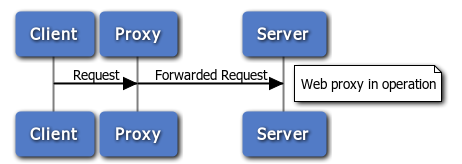
You can make different things happen at the same time using
the parallel keyword.
parallel {
    Client->Proxy: Request
    Proxy->Server: Forwarded Request
    note right of Server: Web proxy in operation
}
Use the serial keyword within a parallel block to describe two parallel sequences of operations.
parallel {
    serial {
        Alice->Bob: Hello
        Bob->Alice: Hello
    }

    serial {
        Eve->Carol: Hello
        Carol->Eve: Hello
    }
}
States (available in purchased version)
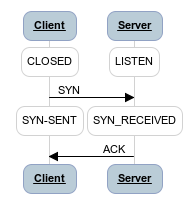
A rounded box can be useful to show state information.
The syntax is identical to the note keyword,
except that state is used.
participant Client
participant Server
parallel {
    state over Server: LISTEN
    state over Client: CLOSED
}
Client->Server: SYN
parallel {
    state over Client: SYN-SENT
    state over Server: SYN_RECEIVED
}
Server->Client: ACK
Autonumbering (available in purchased version)
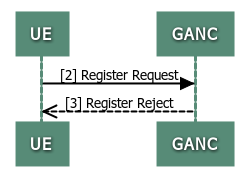
Autonumbering will automatically prefix all signals with a number. To use it, include the line autonumber followed by the number to start with. To turn off autonumbering, use "autonumber off"
autonumber 2
UE->GANC: Register Request
GANC->UE: Register Reject
Reference other sequences (available in purchased version)
You can summarize or refer to sequences by drawing a box over one or more participants.
ref over Mobile, Base Station
   Refer to 3GPP 44.060 6.6.4.1
end ref
You can optionally have a signal going into the box or one coming
out of it.
Alice->ref over Bob, Mary: input
   refer to other diagram
end ref -->Alice: output
Footer types (available in purchased version)
Change the way the bottom of your diagram looks using option footer=.
option footer=none
Alice->Alice:
option footer=bar
Alice->Alice: